> ## Documentation Index
> Fetch the complete documentation index at: https://docs.beatsquares.com/llms.txt
> Use this file to discover all available pages before exploring further.
# Dashboard Overview
> Navigate the BeatSquares dashboard to access your Squares and jump into content creation.
The dashboard is your starting point in BeatSquares. It gives you an overview of all your Squares and lets you jump straight into any content workflow.
 ## What you'll find here
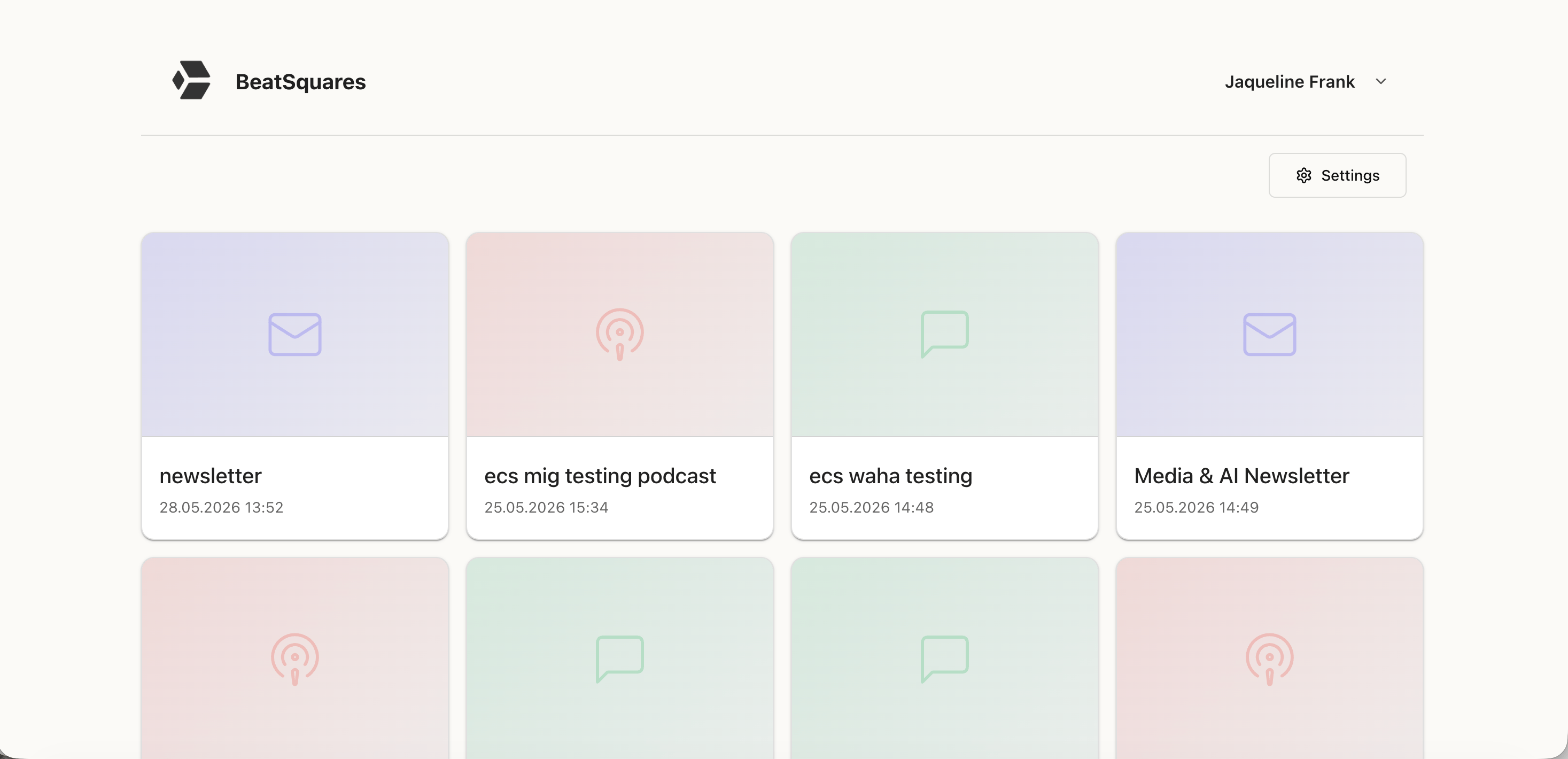
The dashboard has two main elements:
* **Your Squares** – Each Square appears as a card showing its name, selected categories, and output format (podcast, newsletter, WhatsApp message). This lets you instantly see what each Square produces and what topics it covers.
* **A "Create new Square" button** – Start a new content stream for a different topic or output format.
## How to use it
From the dashboard, you can either:
* **Click into an existing Square** to create new content within it, or
* **Create a new Square** for a different content stream.
The dashboard is intentionally simple: see what you have, decide where to work, jump in.
New to Squares? Before going further, we recommend reading [Understanding Squares](/getting-started/understanding-squares) to learn the core concept.
## What's next?
Learn the core concept behind everything you create.
Set up your first Square step by step.
## What you'll find here
The dashboard has two main elements:
* **Your Squares** – Each Square appears as a card showing its name, selected categories, and output format (podcast, newsletter, WhatsApp message). This lets you instantly see what each Square produces and what topics it covers.
* **A "Create new Square" button** – Start a new content stream for a different topic or output format.
## How to use it
From the dashboard, you can either:
* **Click into an existing Square** to create new content within it, or
* **Create a new Square** for a different content stream.
The dashboard is intentionally simple: see what you have, decide where to work, jump in.
New to Squares? Before going further, we recommend reading [Understanding Squares](/getting-started/understanding-squares) to learn the core concept.
## What's next?
Learn the core concept behind everything you create.
Set up your first Square step by step.